Schedule Your Episodes: Auto-Publish Is Here

October 14, 2026
Jumbotron

Record now, release later. Chatmosa now supports auto-publishing, so your episode goes live exactly when you want it to without you needing to be there.

What’s new

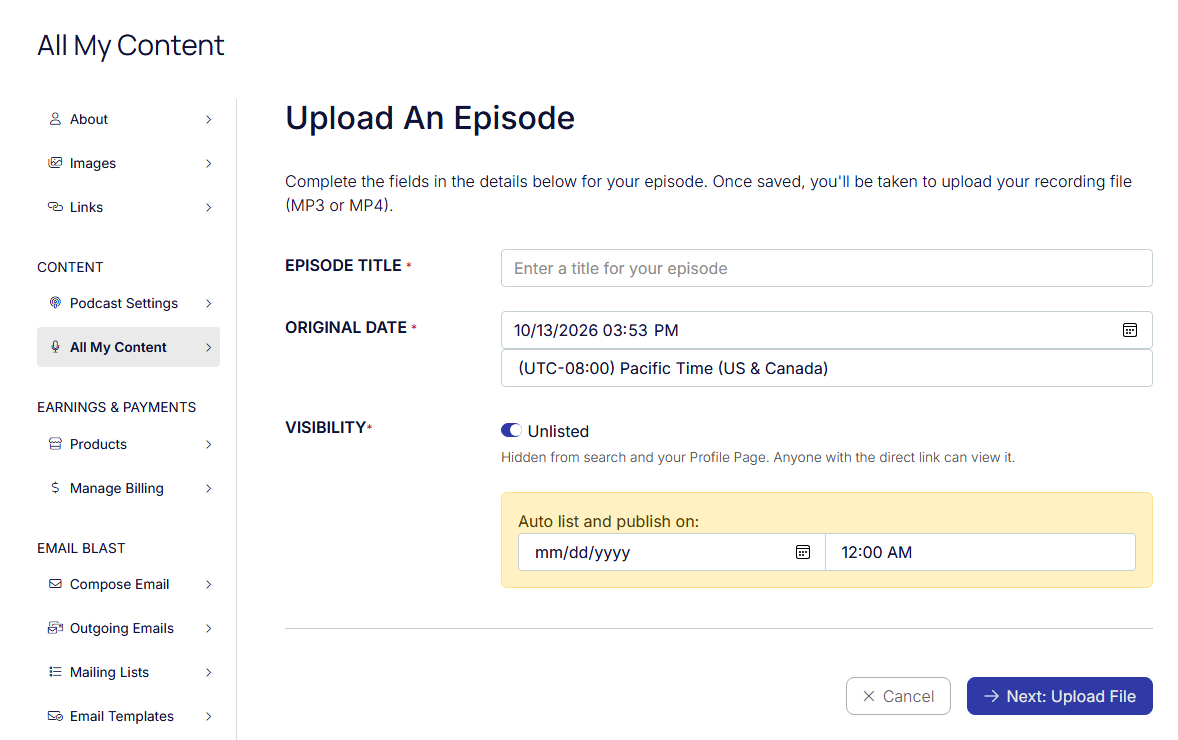
✅ Schedule from the Upload An Episode page. On the Upload An Episode page, set a date and time under Auto list and publish on. Then upload your MP3 or MP4 as usual.

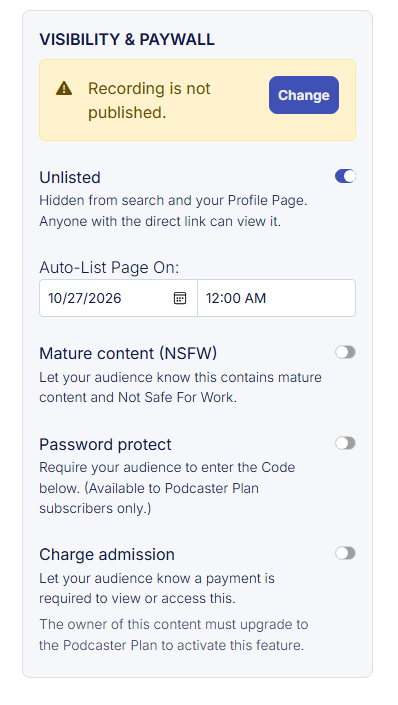
✅ Schedule from the Edit page. Already uploaded? Open the episode and go to the Visibility & Paywall panel. Set Auto-List Page On to pick your release date and time.

✅ “Private” is now “Unlisted.” Same behavior, clearer name. An Unlisted episode is hidden from search and your Profile Page, but anyone with the direct link can still view it.
unnamed (8)
UPLOAD EPISODE
unnamed (12)
EDIT PAGE


Two controls, two jobs

We separated these so it’s always clear what your audience can see:

 LIST or UNLIST your PAGE
This controls whether the episode page is discoverable. When it’s listed, it shows on your Profile Page and in search. When it’s unlisted, it’s reachable only by direct link.

 PUBLISH or UNPUBLISH your RECORDING
This controls whether the recording itself is available to play. If you see “Recording is not published,” tap Change to publish it.

Why it matters

- Drop on a consistent schedule. Fans come back when they know when to expect you.

- Line up your launch. Time your Chatmosa release to match your YouTube premiere, newsletter send, or social posts.

- Preview before launch. Keep the episode Unlisted and share the direct link with your co-host or guest for a final look.

- Batch your work. Record several episodes in one sitting and schedule them weeks ahead.

How to do it

- Go to All My Content and choose Upload An Episode, or open an existing episode.

- Leave Visibility set to Unlisted.

- Set the Auto list date and time.

- Save. When that time arrives, your episode lists itself automatically.

Set it, schedule it, and show up for your fans on time. 🚀

  • #News
How It Works
1
Listen / Participate

ENTER a LIVE Session of your choice.

Listen in or request to become a speaker to share your story through links, photos, or screen sharing. Want to connect face-to-face? Turn on your camera to share your live video feed — whether as a small avatar or as part of a panel displayed on the jumbotron.

2
Host A Session

At the top of each page, click the Create Session button. Share the link with your newsletter subscribers, social media followers, or other intended attendees.

Bring your stories to life through links, photos, screen sharing, or your device's camera feed. Engage your audience with interactive polls.

You can make your session open to everyone, keep it private, or set an admission fee for exclusive access.

3
Become A Podcaster

Chatmosa streamlines podcast production, whether you're hosting solo or collaborating with others in your session. And the best part? You can publish your podcast directly from your mobile device—making it simple to record, manage, and share your content anytime, anywhere.

This feature is available exclusively to paid subscribers. Head to your Account Settings to set up your podcast—add the right information and upload the required artwork.

Once set up, an RSS feed will be generated for you and hosted by Chatmosa. Simply copy and paste the link into your preferred podcast platform. That's it — set it and forget it! Your public and recorded sessions will automatically be added to your podcast feed.